LingBot Reviews — Discover what people think of this product.
LingBot
AI Voice Browser Assistant
- supporters
What does LingBot help with?
LingBot — AI Voice Browser Assistant
Tell AI what to do in your browser — by voice or text.
Website: https://lingbot.pages.dev/
What is it
LingBot is a Chrome extension. Once installed, a small button appears on every web page — click it, the sidebar opens, and your AI assistant is ready.
You can chat with it, or just speak your instructions. It can see the page you're browsing, help you translate, search, take notes, operate the page, upload files, fill forms, and click buttons.
In short: you talk, it acts.
Features
🤖 AI Chat — It sees what you're looking at
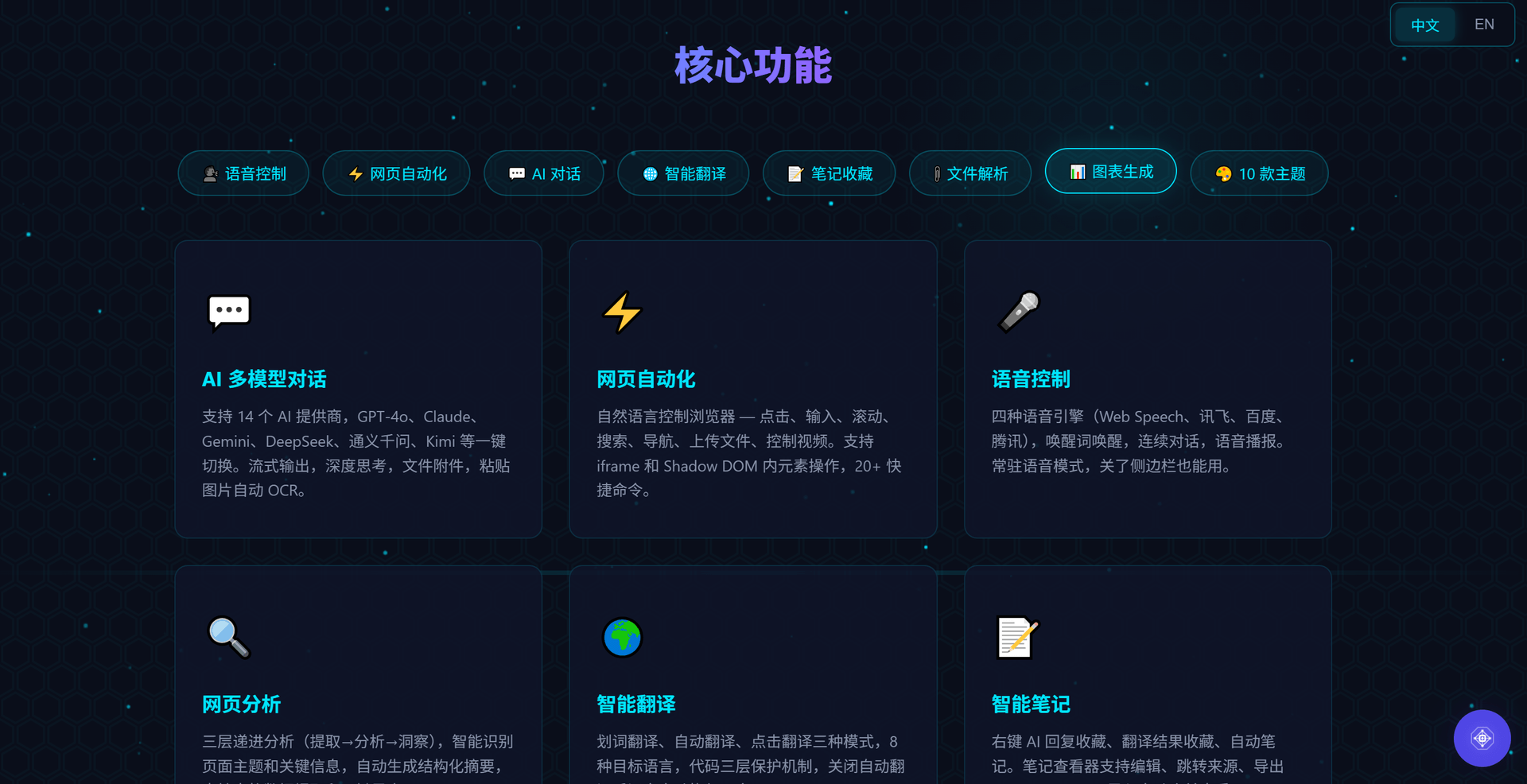
LingBot connects to 14 major AI providers: OpenAI, Claude, Gemini, DeepSeek, Qwen, Kimi, Zhipu, Ernie, Doubao, MiniMax, SiliconFlow, Grok, and more. Use whichever you like — no vendor lock-in.
Here's what makes it different: the AI can see the web page you're on. Ask "what's this page about?" and it answers based on the actual content — no copy-paste needed, no screenshots required.
Want deeper analysis? Enable deep thinking mode and the AI shows its reasoning process before answering. Works with DeepSeek-R1, Claude 3.7+, and other reasoning models.
Sending messages is easy: paste images, URLs, or local file paths — it recognizes them all automatically. Images get OCR'd, PDFs and Word documents are read directly. Up to 100 messages of context by default, so long conversations stay in memory.
🌐 Browser Automation — You say, it does
This is LingBot's most powerful ability: control web pages with natural language.
"Open Google and search for today's tech news" "Click the third search result" "Download this page's table as Excel" "Summarize this page"
It analyzes the page structure, generates commands, and executes them step by step. Errors trigger automatic retries — up to 50 steps. Up to 20 commands can run in a single batch.
It goes beyond simple clicks and typing — it can operate elements inside iframes and Shadow DOM, recognize rich text editors like CodeMirror, Monaco, and Quill, and auto-close popups from any framework. Page navigation? No problem — the task saves automatically and resumes on the new page.
Plus 20+ slash commands: /navigate to open URLs, /scroll to scroll, /summarize to summarize, /translate to translate — type / to see them all.
🎙️ Voice Control — Just speak
Four speech engines to choose from:
- Web Speech API: Built into Chrome, zero setup, works instantly
- iFlytek: 20+ dialects, top-tier Chinese recognition
- Baidu: Excellent Chinese, understands Cantonese, Sichuan, and Shanghai dialects
- Tencent: Great Chinese recognition, strong Cantonese support
Set a wake word (default: "Hello, LingBot"), then control everything by voice: open sites, search, click buttons, type text, translate, generate notes…
Supports continuous conversation — no need to repeat the wake word. AI replies can be read aloud automatically with adjustable speed and volume. Enable always-on mode and the assistant stays listening even when the sidebar is closed.
🌍 Smart Translation — Three modes, your choice
- Selection translate: Select text and a translation popup appears instantly — drag to reposition
- Auto translate: Translates as you scroll, never re-translates the same text, lazy-loaded for performance
- Click translate: Click any paragraph to translate, click again to hide, click a third time to see the cached result
Code blocks are automatically protected — three layers of defense keep <code> tags, code class names, and inline code snippets from being mangled. Supports 8 languages: Chinese, English, Japanese, Korean, French, German, Spanish, Russian. Turn off auto-translate and all translations revert to the original text instantly.
📎 File Handling — Upload and ask
Supports a wide range of formats:
- Images: jpg, png, gif, webp — automatic OCR for Chinese and English, with progress bar
- Documents: PDF (page-by-page extraction), Word (text extraction), Excel (CSV export)
- Code: 60+ programming languages, auto-detection, syntax highlighting
- Data: CSV, JSON, Markdown, TXT, and 30+ other text formats
Upload by clicking the paperclip icon, pasting screenshots, pasting URLs, or pasting local file paths. Click any attachment to preview — full-size images, highlighted code, rendered Markdown, extracted PDF text.
Then just ask: "What does this PDF say?" / "What's wrong with this code?" / "Visualize this Excel data as a chart" — it handles it all.
📊 Charts & File Output — AI gives you the finished product
Generate charts right in the conversation: bar charts, line charts, pie charts (solid and donut), radar charts. Download as PNG at 2x resolution, or export as JSON to re-import later.
Generate files too: ask AI to save analysis as Excel, export notes as PDF, output config as JSON — all embedded in the conversation, one click to download.
📝 Notes & Bookmarks — Save good content with one click
Bookmark in multiple ways: right-click any AI reply to save, click ⭐ in translation results, or enable auto-notes to generate them automatically on page load.
When saving, type a new title or pick from existing ones — auto-complete makes organizing easy.
Open the notebook viewer (📓 icon in the sidebar): titles on the left, content in the middle (rendered Markdown), and a timeline on the right showing each note's source link and save time. Double-click to edit, click source links to jump back to the original page — it scrolls to the exact position and highlights the saved text.
Export individual notes as .md files, or export everything as a .zip backup. Import merges and deduplicates automatically.
⚙️ Settings — Everything is customizable
Click the ⚙️ gear icon in the sidebar to open settings. Four tabs, all adjustable:
AI Model Configuration
10 one-click presets (OpenAI, Anthropic, DeepSeek, MiMo, Qwen, Kimi, Zhipu, Baidu, MiniMax, SiliconFlow) — one click and done. Or manually add any OpenAI-compatible API. Each model has its own URL and key. Export config as JSON for team sharing.
General Settings
Switch between 10 themes, customize keyboard shortcuts, set translation target language, choose translation and note modes, toggle browser automation on or off — everything works your way.
Voice Settings
Switch recognition engines, configure credentials, customize wake words, enable always-on voice, adjust readback speed and volume, set buffer and idle timeouts — fine-tuned to every parameter.
User Settings
Adjust context message count (100–500), manage cache (up to 30MB), switch interface language (中文/English), view documentation and version info. Clearing cache only removes sessions and logs — your model configs, theme, and shortcuts stay safe.
🎨 10 Themes — Find your style
Dark collection: Cyberpunk (cyan tech), Dark Gold (golden luxury), Amethyst (purple dream), Midnight (blue calm), Emerald (green fresh)
Light collection: Classic (indigo default), Rose Gold (elegant), Sakura (pink soft), Pearl (dark gold refined), Sky Blue (bright clear)
Click to switch instantly. Auto-adapts to your system's dark/light preference.
⌨️ Shortcuts
| Shortcut | Action |
|----------|--------|
| Ctrl+`` | Toggle sidebar |
| Enter | Send message |
| Shift+Enter | New line |
| ↑ (empty input) | Browse history |
| Escape | Close menu/preview |
Who is it for
| What you do | How LingBot helps | |-------------|-------------------| | Writing code | Voice-control the browser, translate technical docs, upload code for AI review | | Creating content | Web clipping, note management, multilingual translation | | Cross-border commerce | Real-time foreign page translation, batch product info collection | | Researching | Extract key info from pages, organize literature notes | | Accessibility needs | Voice-controlled browsing, less mouse and keyboard dependency |
Installation
Manual Install
- Download and extract
ai-browser.zip - Open Chrome, go to
chrome://extensions/ - Enable "Developer mode" (top right)
- Click "Load unpacked" and select the extracted folder
- Done! A floating button appears in the bottom-right corner
Chrome Web Store
Search LingBot on the Chrome Web Store and install with one click.
Contact
- Website: https://lingbot.pages.dev/
- Email: xiaoling6668882026@outlook.com
Questions or suggestions? We'd love to hear from you.
Having issues or need an activation code? Feel free to reach out via email or DM.
Featured Today

Layers
Agentic Marketing
Learns your app & audience.
Real-time trends.
Turn your code into users
Full Stack Marketing
Weekly Drops: Launches & Deals